

Changing your wallpaper on a MacBook is one of the easiest ways to refresh your workspace.
Whether you want a minimalist look, a nature background, or a custom image you’ve downloaded, macOS makes the process quick and intuitive. In just a few clicks, you can personalize your screen and make your MacBook feel more like your own.
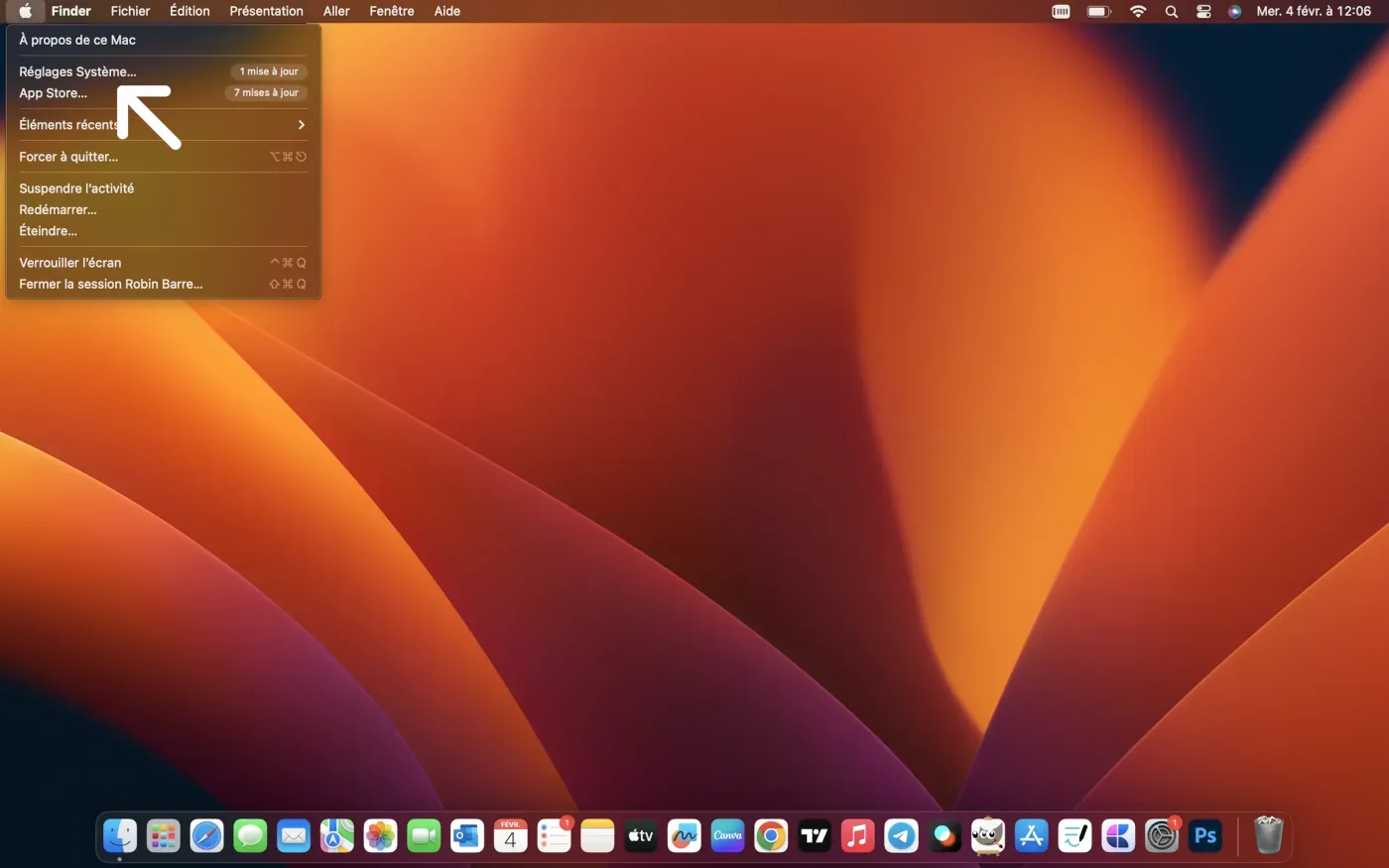
Step 1. Open System Settings
Click on the Apple logo () in the top-left corner of your screen, then select System Settings (or System Preferences on older macOS versions).
Step 2: Go to Wallpaper
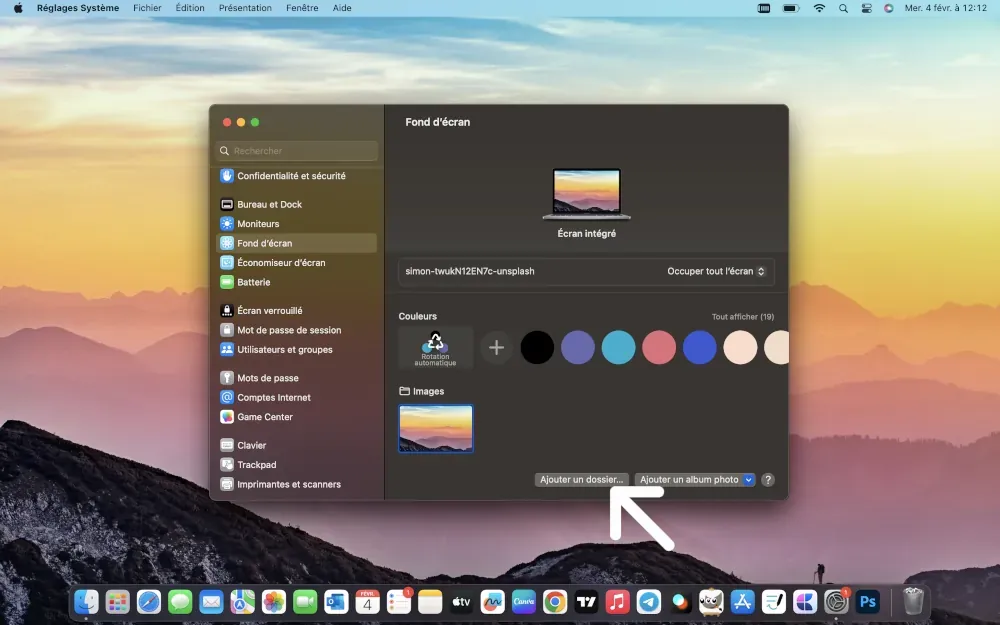
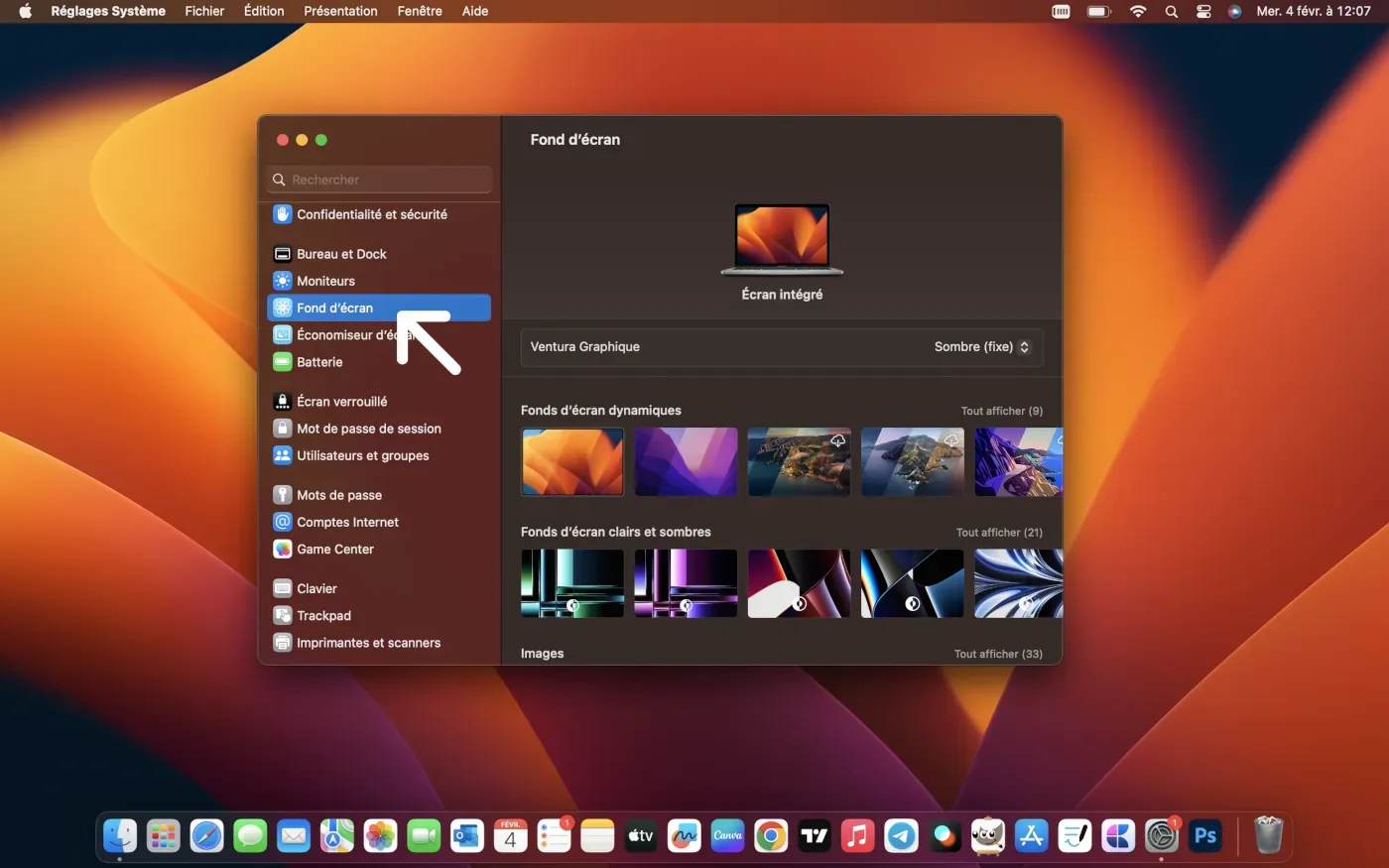
In the menu on the left, scroll down and click on Wallpaper.
You’ll see Apple’s default wallpapers, including dynamic, light, and dark options.
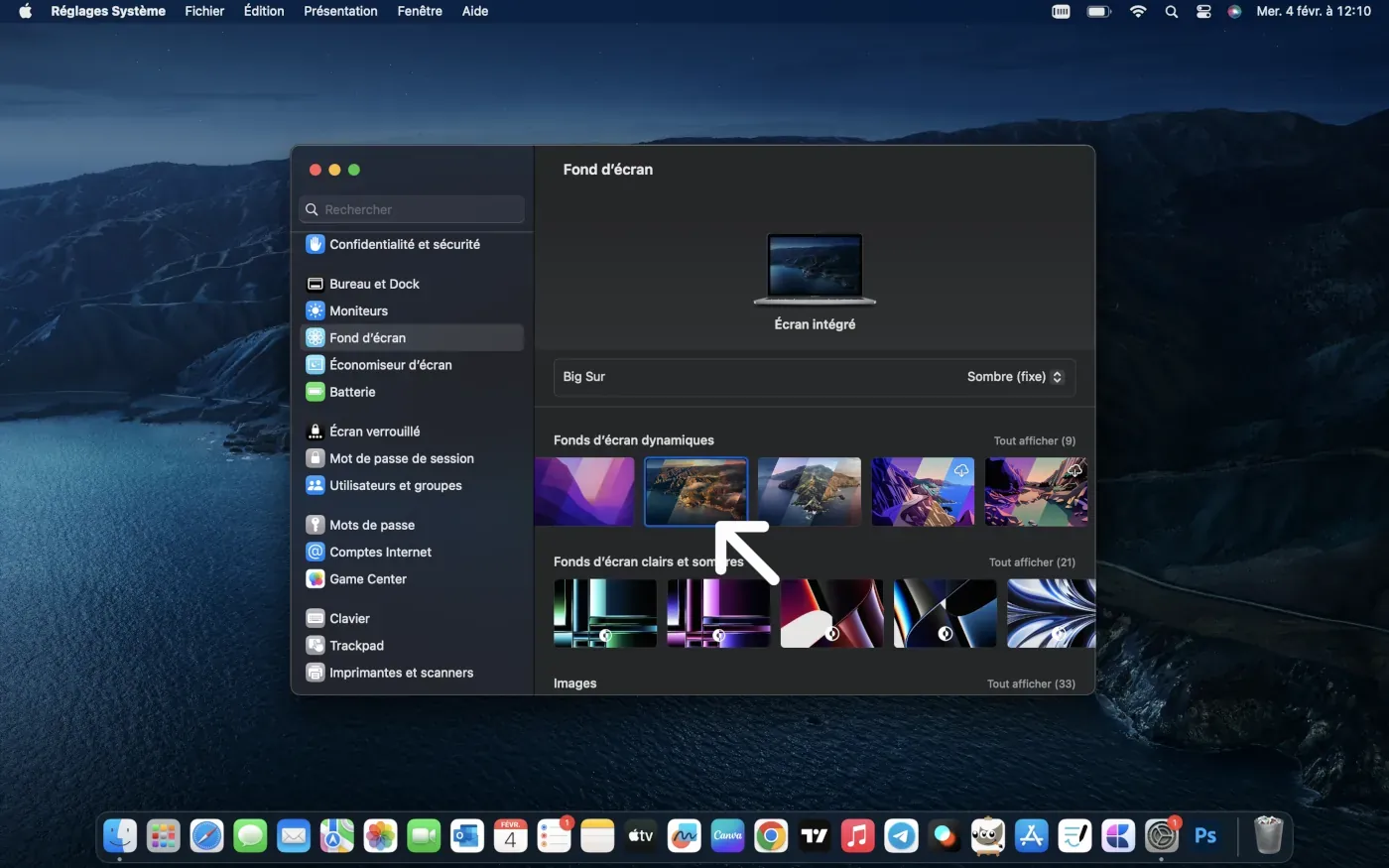
Step 3: Choose a built-in wallpaper
Simply click on any wallpaper to apply it instantly.
macOS will automatically adjust it to your screen resolution.
Step 4: Use your own image
To use a custom wallpaper:
-
Click Add Folder or Add Photo
-
Select an image from your Mac (Downloads, Pictures, etc.)
-
The image will appear in the wallpaper list—click it to apply