



Customizing your desktop goes beyond static images.
With live wallpapers, you can bring motion, atmosphere, and personality to your Windows 10 or Windows 11 setup. Whether it’s a cinematic scene, a relaxing animation, or a dynamic visual, animated wallpapers can completely transform your desktop experience.
In this guide, you’ll learn how to easily set up a live wallpaper using Purewall Studio.
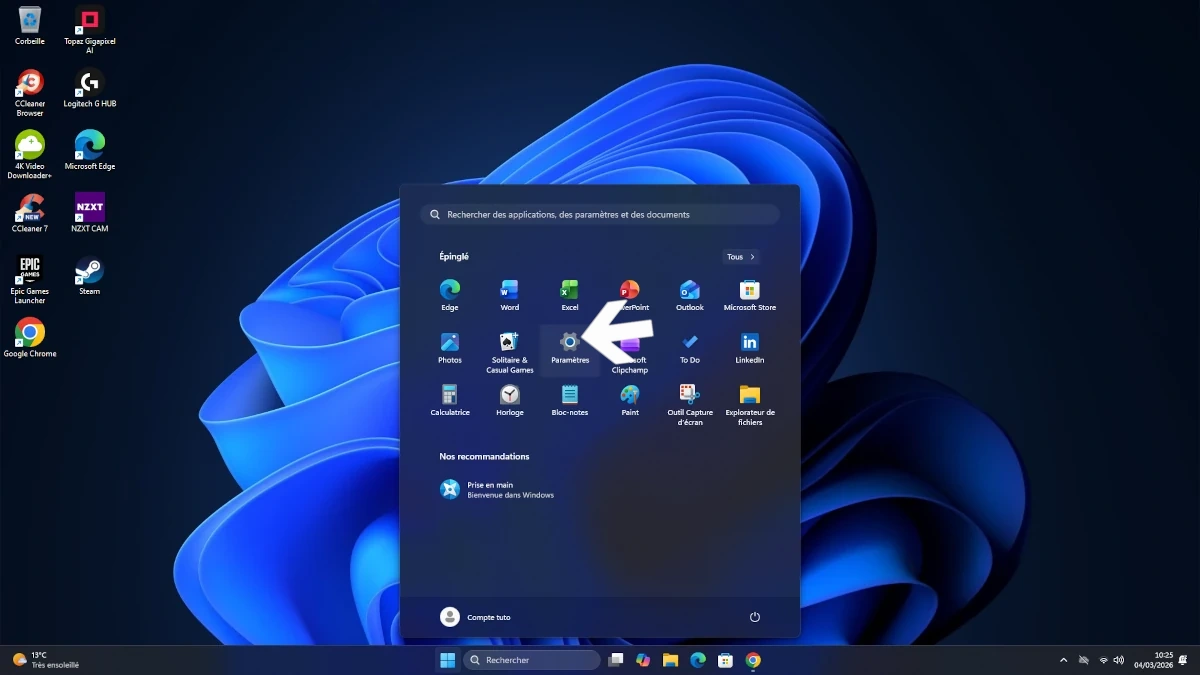
Step 1: Download Purewall Studio
Start by downloading Purewall Studio from the official source.
Once the file is downloaded:
- Open the installer
- Launch the installation process
- Follow the on-screen instructions
After installation, open the software.
Download Purewall Studio : Download
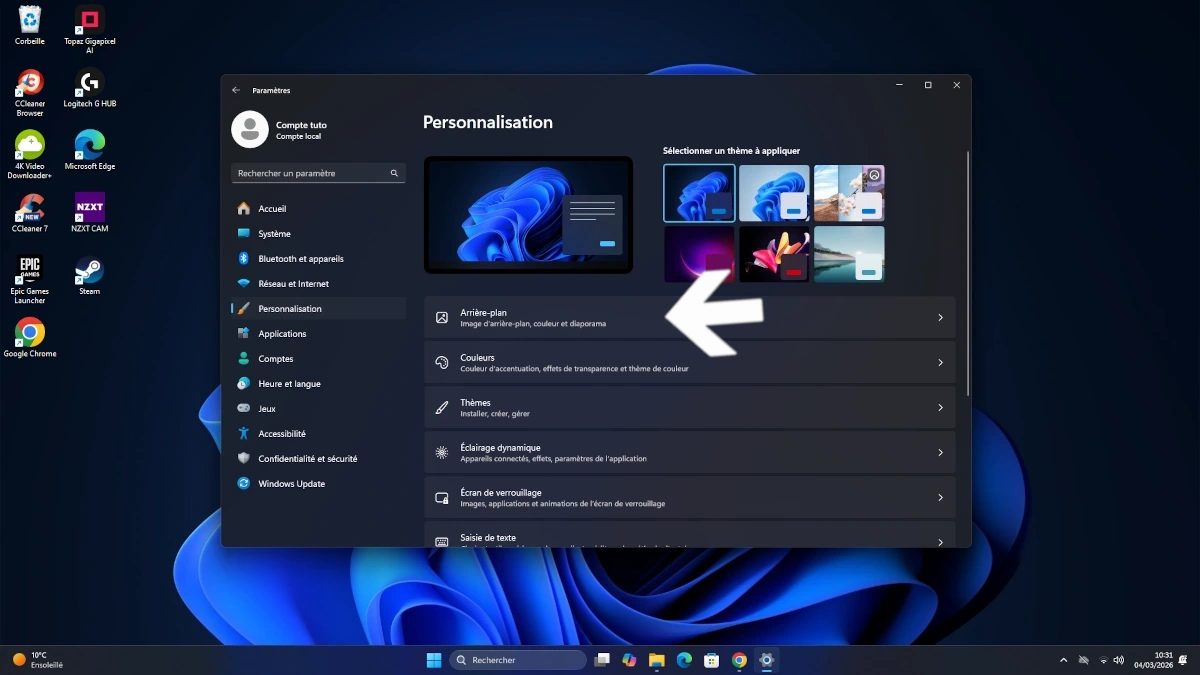
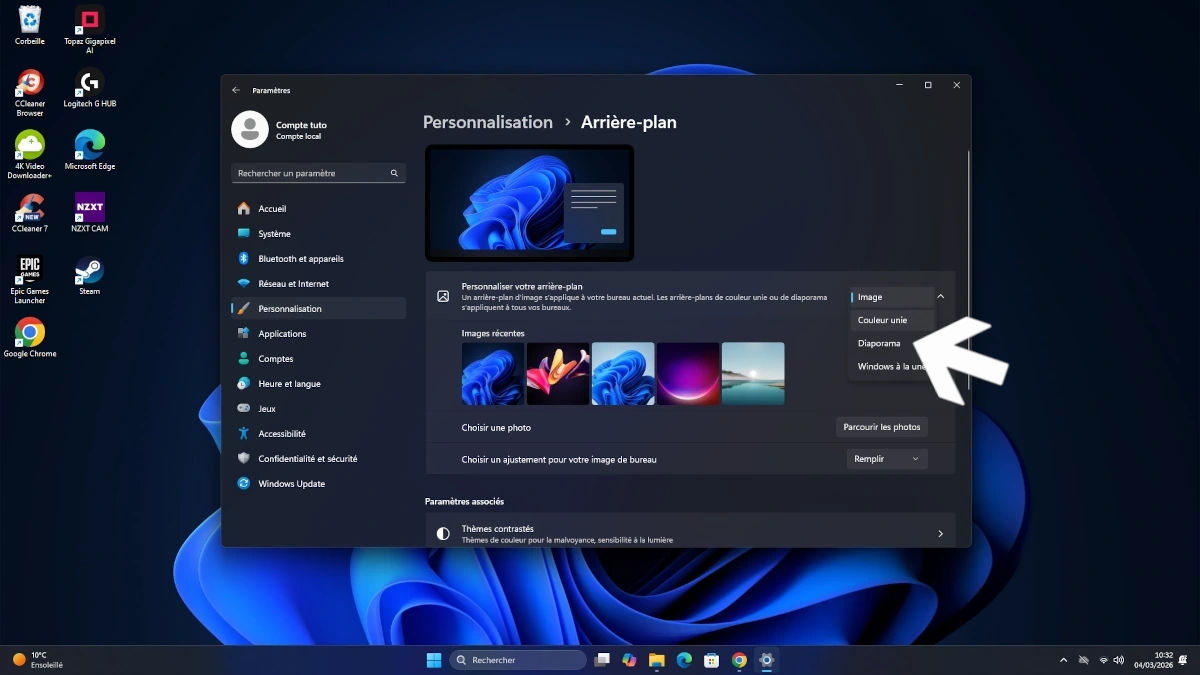
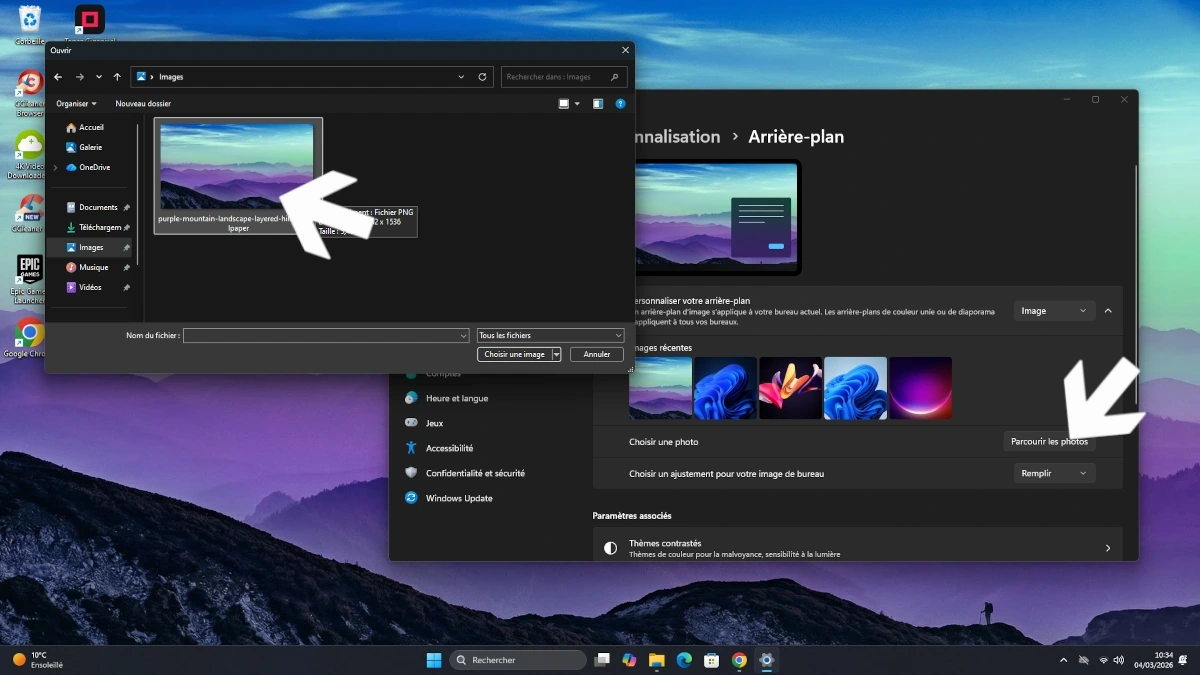
Step 5: Adjust settings and apply
Purewall Studio offers several customization options:
- Pause or play the animation preview
- Adjust the playback speed
- Fine-tune the visual experience
Once you’re satisfied:
- Click “Apply Live Wallpaper”
- Wait 5–10 seconds
Your animated wallpaper will automatically appear on your desktop.