
Car Wallpaper for iPhone power, design, and Style

February 26, 2026

Japanese minimalist wallpaper desktop

March 18, 2026

How to Change Your Wallpaper in Windows 11

Customizing your desktop wallpaper is one of the easiest ways to personalize your computer. Whether you want a clean aesthetic, a nature photo, or a gaming background, Windows 11 allows you to change your wallpaper in just a few steps. In this guide, you’ll learn how to quickly update your desktop background.

Step 1: Open Windows Settings

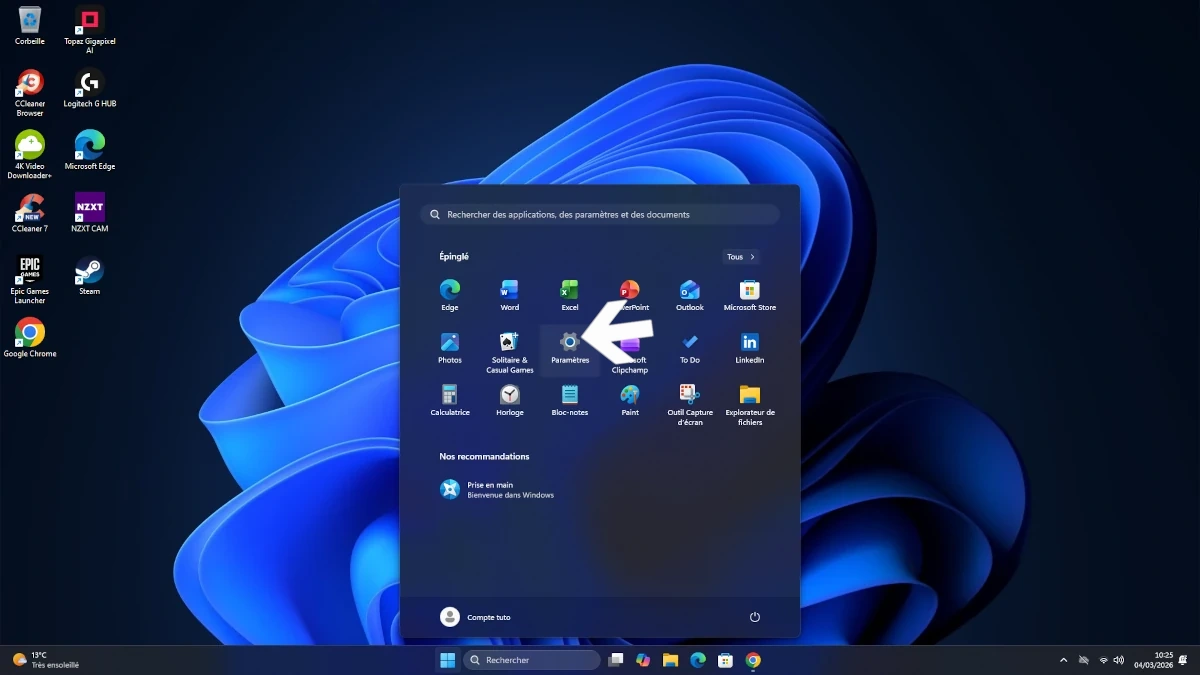
Click on the Start menu in the taskbar.
Then select Settings (the gear icon).

You can also use the keyboard shortcut:
Windows key + I

Step 2: Go to Personalization

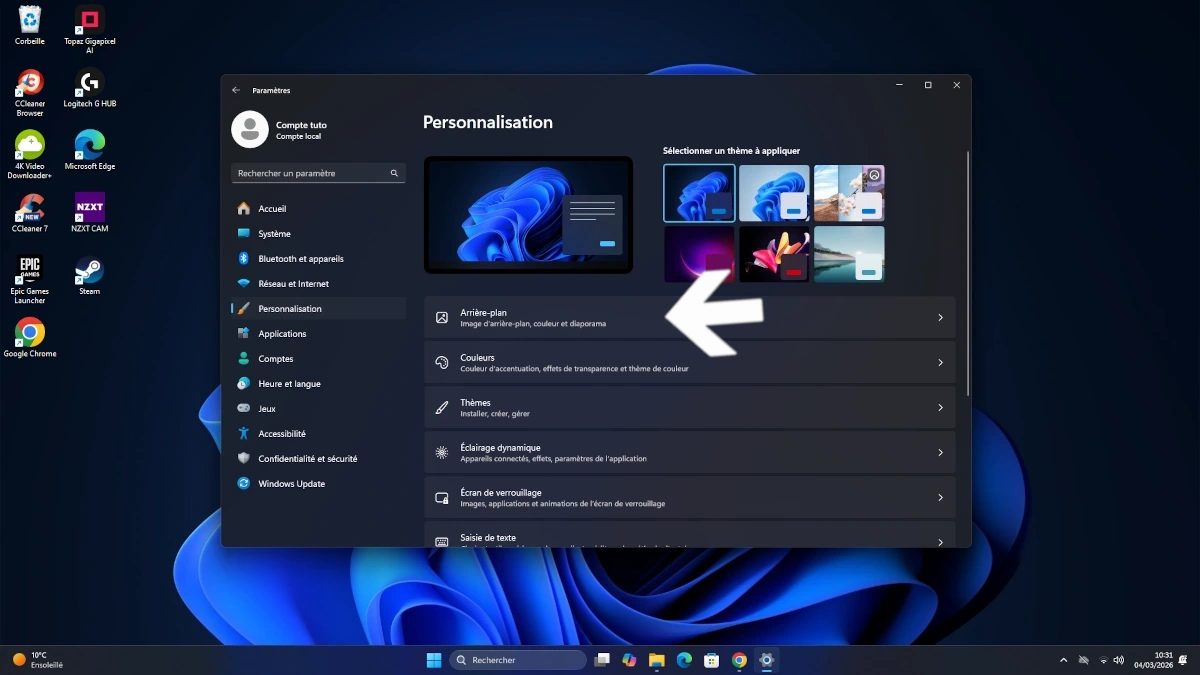
Inside the Settings window, click on Personalization in the left menu.

This section allows you to customize several elements of Windows such as colors, themes, and your desktop background.

Step 3: Select Background

Click on Background.

You will now see options to customize your desktop wallpaper.

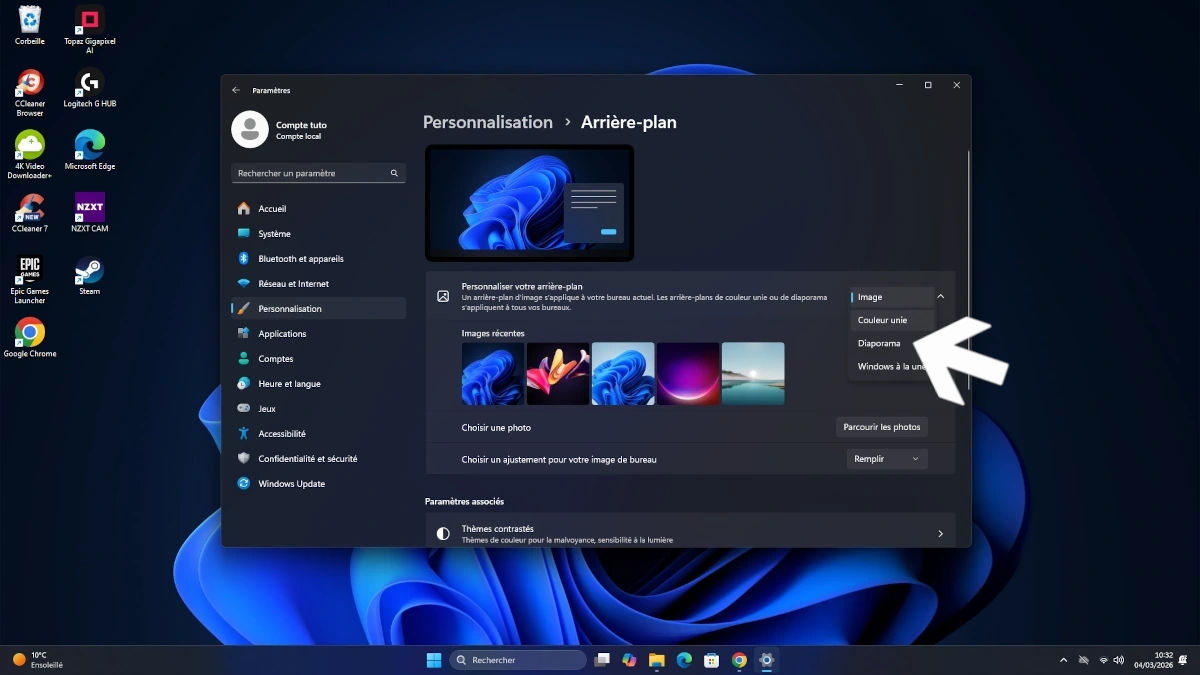
Step 4: Choose Your Wallpaper Type

Windows 11 gives you three main options:

  • Picture – choose a single image

  • Solid color – select a simple color background

  • Slideshow – automatically rotate multiple images

If you choose Picture, you can select one of the default wallpapers or upload your own image.

Step 5: Upload Your Own Wallpaper

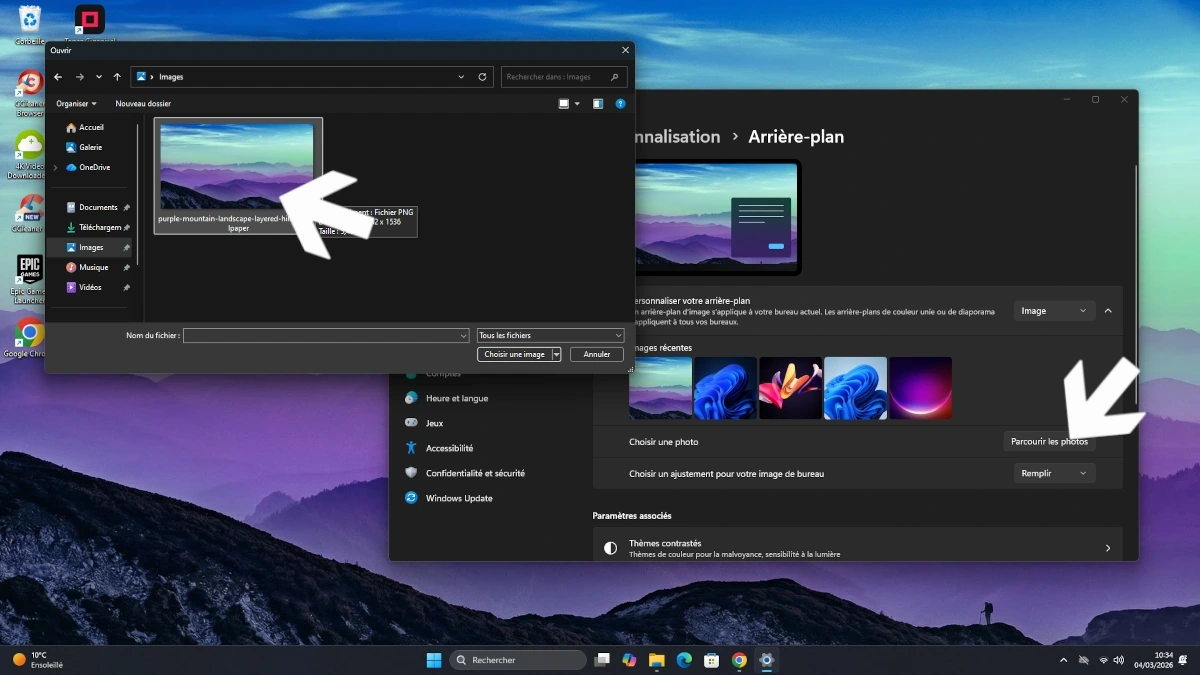
To use a custom image:

  1. Click Browse photos

  2. Select the image from your computer

  3. Click Choose picture

The wallpaper will be applied instantly to your desktop.

Leave a Reply

Your email address will not be published. Required fields are marked *